Open Local Share on both devices
Use the Local Share web app on your phone. On your PC, open the Chrome extension side panel or the web app in the browser.
 Local Share
By WEB INVADERS
Free web app and PWA to send files between phone and PC on Wi‑Fi or LAN — plus a Chrome extension side panel to send links, files, and clipboard from your computer while browsing. Peer-to-peer transfers, no cloud file storage, no account.
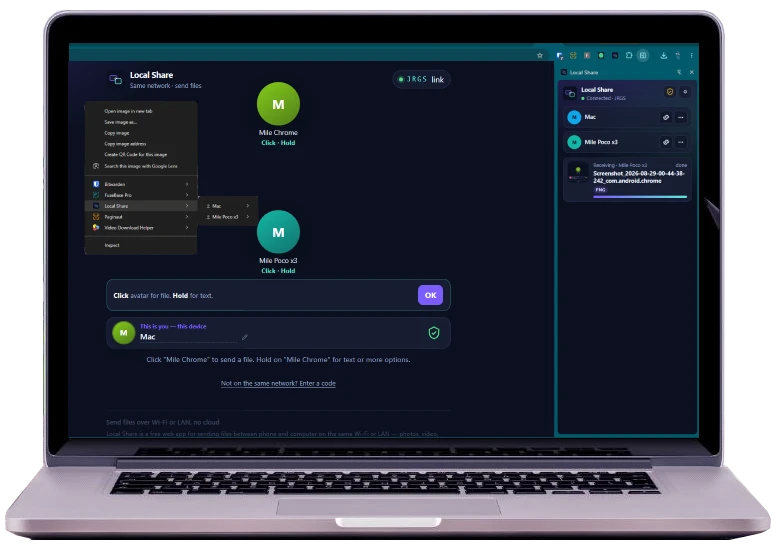
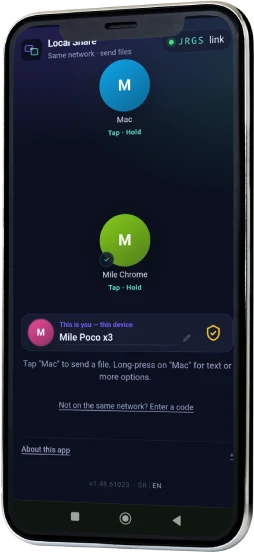
Same room. Web app or Chrome extension — your choice.
Use the Local Share web app on your phone. On your PC, open the Chrome extension side panel or the web app in the browser.
Devices on the same Wi‑Fi or LAN join automatically. Across networks, enter the same room code or open the invite link from the web app.
Phone: receive files, drag-and-drop, or share from other apps via Android Share. PC: send the current tab link, clipboard, context-menu selections, or files — device to device over WebRTC.
Two clients, one room. Pick what fits each device.
Side panel for sending tab links, clipboard, and files while you browse. Works with the Local Share web app in the same room.
Chrome Web Store — coming soonLocal Share is designed so file bytes go device-to-device over WebRTC when a direct peer connection is available.
Read the Privacy Policy (web app & extension), or see the feature comparison for capability and permission differences between clients.